 Original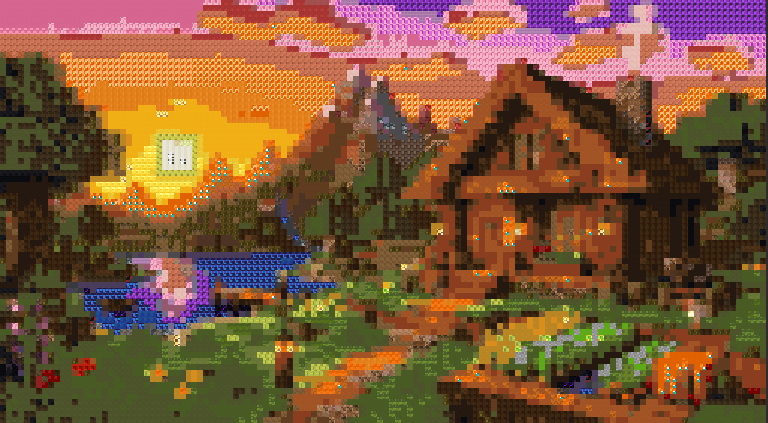
MINECRAFT LANDSCAPE
FREE · PRIVATE · NO SIGN-UP
Convert any image or photo into Minecraft pixel art online. Match real blocks, preview exact dimensions and material counts, then download a numbered guide or Java blueprint.
REAL CONVERTER RESULTS
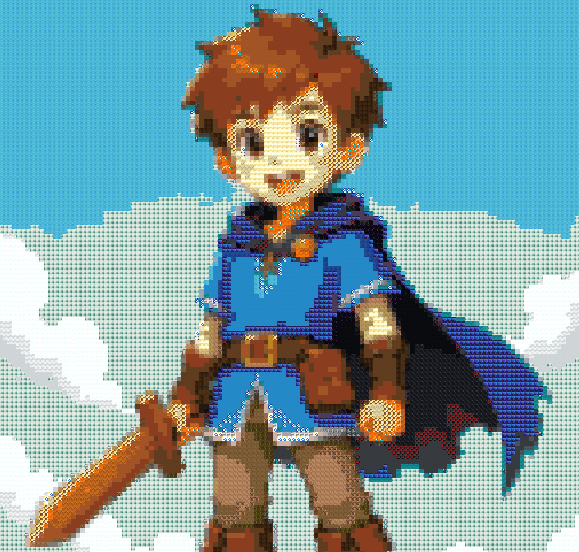
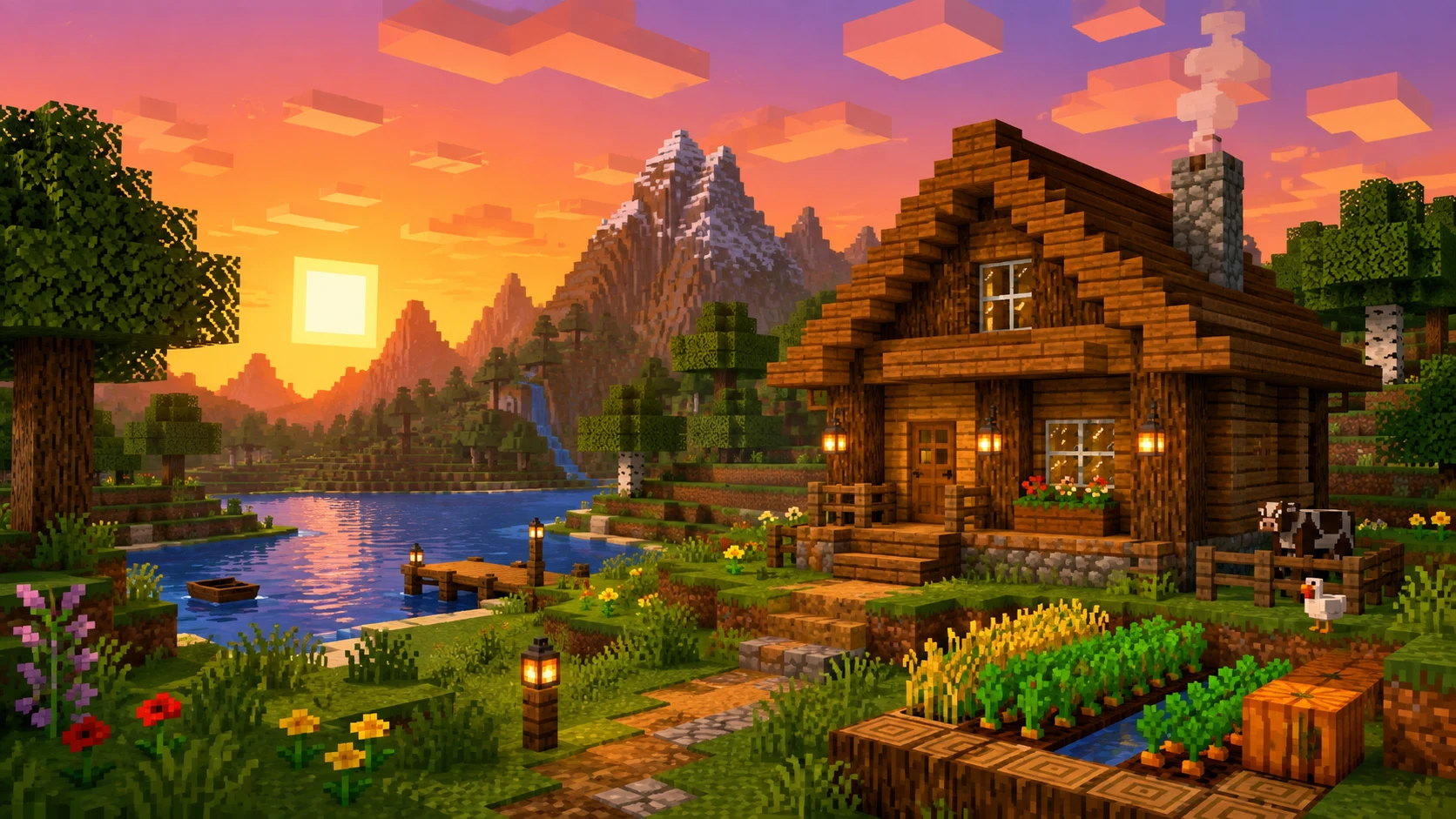
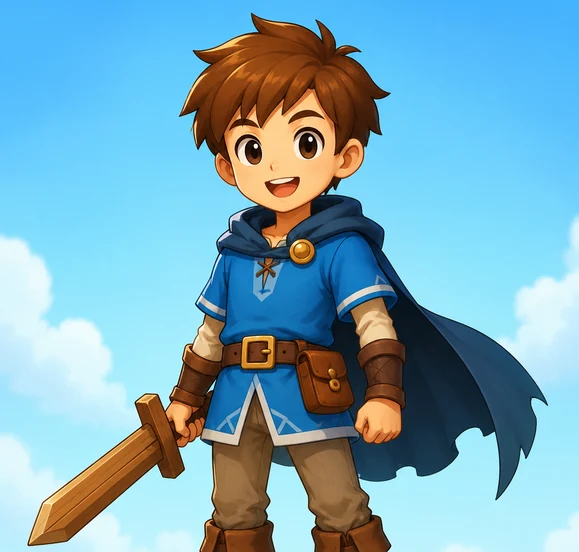
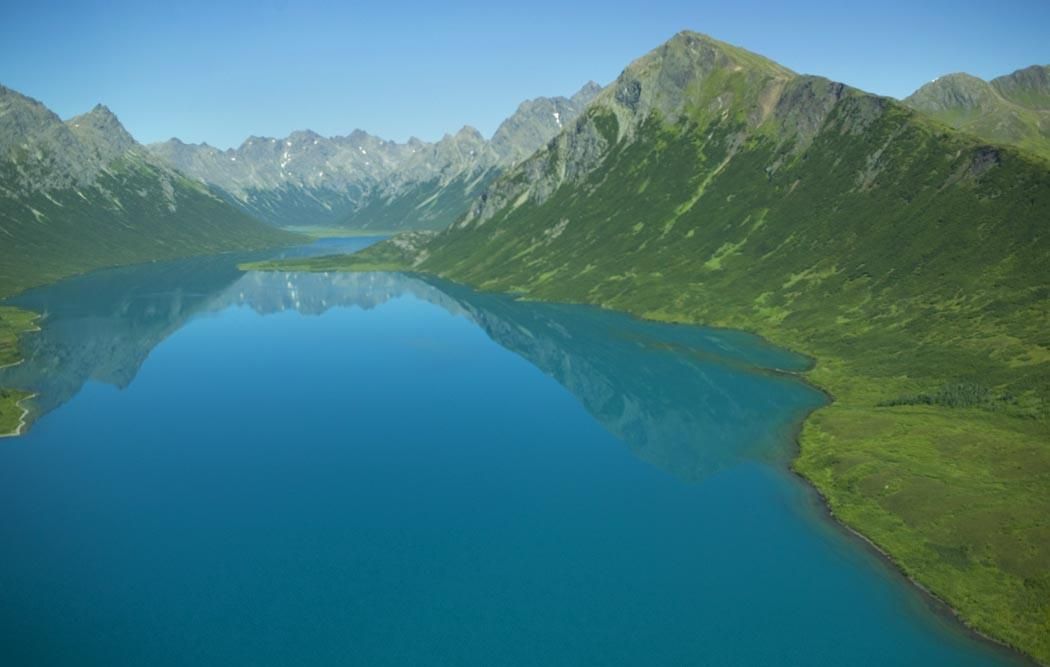
Drag the divider on each example to compare the uploaded image with this converter's block result. The first two use the exact 128-block, All Blocks settings shown in the reference configurations.
OriginalMINECRAFT LANDSCAPE
 Original
CHARACTER IMAGE
 Original
PHOTO
THREE SIMPLE STEPS
Use the Minecraft pixel art generator to turn a photo or picture into a block-friendly visual design you can follow while building in Minecraft. For the complete workflow, read our step-by-step Minecraft pixel art tutorial.
Choose a PNG, JPG or WebP photo, picture, illustration or character image up to 10 MB. Processing stays in your browser.
Set the grid width, choose a Minecraft block palette, zoom the preview and replace matched materials when a different block suits your build better.
Review the numbered grid, exact block counts and stack totals, then download a visual guide, materials list or supported Minecraft blueprint file.
CONTROL YOUR BUILD
The size of your pixel art affects both detail and build difficulty. A smaller grid needs fewer blocks and is easier to finish, while a larger design preserves more of the original image. Compare 16×16, 32×32 and larger options in our pixel art grid size guide.
Try your own image →Choose a preset or enter any width from 1 to 512 blocks. The height follows the source image proportions automatically.
Use the build-guide view to inspect the Minecraft pixel art pattern one block at a time, with section lines every 16 blocks.
Increase the on-screen preview size without changing the dimensions or materials required for the finished build.
The downloadable guide labels coordinates from the bottom-left and includes a numbered legend for every material.
MATCH REAL MINECRAFT BLOCKS
Pixel art colors do not always map perfectly to blocks available in Minecraft. This Minecraft pixel art converter turns visible image pixels into a block palette intended for an actual build.
The converter compares every visible pixel with the active palette and selects the closest available Minecraft block color.
Convert an image to Minecraft blocks using Recommended, All Blocks, Wool, Concrete, Terracotta, Wood, Stone, Natural and other focused palettes.
Choose the Survival palette when you want the automatic matching to use blocks marked as obtainable in Survival gameplay.
Swap every use of one matched block for another block from the current palette when you prefer a different texture or resource.
CHECK BEFORE YOU BUILD
Use the Minecraft pixel art editor to inspect the generated block types. If a matched block is too rare or its texture does not suit your build, replace every use of it with a block you prefer. Material counts update automatically.
Hover over the design to see the block name, ID, color, coordinates and total number used.
Click a block in the preview, choose another block type and update every matching cell in one action.
Remove your block-type changes and return to the automatically matched Minecraft block palette at any time.
Switch between textured blocks, the numbered build guide and the original image while checking the conversion.
GATHER MATERIALS AND START BUILDING
Check the exact quantities before collecting blocks, then follow the numbered guide by hand or take a Java Edition blueprint into your build world.
See the total grid size, the number of block types and the exact quantity required for every material.
The Minecraft pixel art calculator converts each block count into full stacks plus the remaining blocks.
Save the Minecraft pixel art block list as a spreadsheet-friendly CSV or a simple TXT checklist.
Download a numbered Build Guide PNG, Litematica file or Sponge/WorldEdit schematic when you are ready to build.
FROM IMAGE TO FINISHED BUILD
SIZE → PALETTE → MATERIALS → GUIDE
Before placing the first block, choose a grid size that fits the space available in your Minecraft world. Smaller Minecraft pixel art builds are easier to finish, while larger designs preserve more detail but require significantly more materials.
Review the matched block palette and replace materials that are difficult to collect. Then use the Minecraft pixel art planner to check block counts and stack totals, so you know exactly what to gather before you start building.
When you are ready to build Minecraft pixel art, follow the Minecraft pixel art pattern row by row with the numbered build guide, or export a supported Java Edition Minecraft pixel art blueprint for an in-game building workflow.
FREQUENTLY ASKED QUESTIONS
Answers about image formats, grid sizes, Java and Bedrock support, block editing, materials, downloads and browser privacy.
A Minecraft pixel art generator turns an image into a simplified block design that you can use as a visual reference or blueprint for building pixel art inside Minecraft. This tool also matches the image colors to Minecraft blocks and calculates the materials required.
Upload a PNG, JPG or WebP image, choose the width of your design, select a Minecraft block palette, and review the generated block grid. You can replace a matched material before downloading the build guide or another supported file format.
The numbered Build Guide PNG can be followed as a visual reference in either edition. The .litematic and .schem blueprint downloads target Java Edition import workflows and are not Bedrock Edition files.
The Java blueprint files create a vertical design that is one block thick, so they are intended for wall art. You can also follow the numbered PNG manually on a wall or floor. This tool does not generate Minecraft Map Art.
The .litematic and Sponge .schem files are written for Java Edition with Minecraft DataVersion 4189. Import support depends on the version of Litematica, WorldEdit or another schematic tool you use. The page displays Java 1.21.8 block textures, but that texture label is separate from blueprint-file compatibility.
Transparent pixels become Air. They stay empty in the Minecraft pixel art grid and are not included in the block total or materials list.
Not currently. You can inspect any block, then replace every use of that matched block type with another block from the active palette. The tool does not yet include single-block drawing, an eraser or brush tools.
Choose Survival to limit matching to block types marked as obtainable in Survival gameplay. Recommended uses a smaller practical set, while All Blocks offers the widest color range but may include rarer or more difficult materials.
There is no single best size. Smaller grids are faster to build and need fewer blocks, while larger grids preserve more detail. Start with the smallest width that keeps the important shapes recognizable; this Minecraft pixel art generator supports widths from 1 to 512 blocks.
Yes. The materials list shows each block type, its exact count, full stacks of 64 and the remaining blocks. You can download it as CSV or TXT, or use the numbered legend included in the Build Guide PNG.
No. Image processing happens locally in your browser, so the original image stays on your device and no account is required.
No. This is an independent tool and is not affiliated with or endorsed by Mojang Studios or Microsoft. Minecraft is a trademark of Microsoft.
BUILD IT BLOCK BY BLOCK
Upload your image, match it to Minecraft blocks, adjust the design, check the materials list and start building.
Choose an Image →This independent tool is not affiliated with or endorsed by Mojang Studios or Microsoft. Minecraft is a trademark of Microsoft. Minecraft textures © Mojang/Microsoft.